

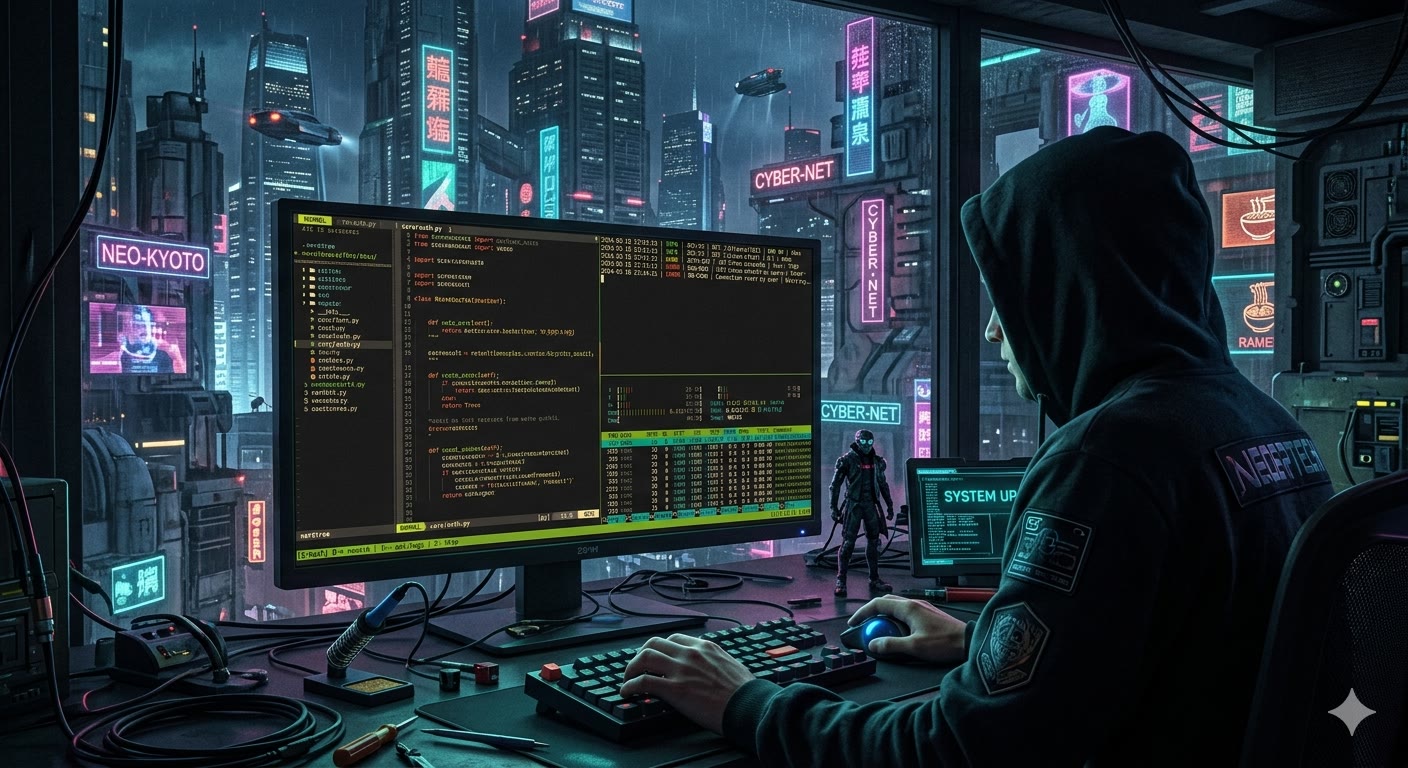
With the emulator and font in place, the next problem appears quickly: a single terminal window is rarely enough. When moving to a terminal-based workflow I was searching for an effective way of managing multiple applications. For instance, it's very common to have an IDE (Neovim) running alongside some backend logs and a separate terminal for running/stopping the application. Having it all on a single screen boosts productivity.
There are plenty of terminal emulators that offer such features (Windows Terminal, Warp, Termux, Kitty, Alacritty), but I was looking for something that works directly on the remote machine (when connected to remote VPS). This way I don't get used to a particular device or OS that I use to connect to the machine. No matter if I use a PC or smartphone, I can split the terminal using the same keyboard shortcuts.
tmux (link) is the tool of my choice. It
makes it easy to spawn new terminal windows whenever I need to run a process,
check logs, or do something else. ctrl+space, then v, and my terminal is
split in half with another terminal ready to run more commands.
tmux has one more outstanding feature: it's easy to return to an established
session. If for any reason my tmux session is interrupted (when working on a
remote machine this often means a dropped connection), I can simply run
tmux attach to land exactly where I left off.
With
tmuxit's easy to switch to another 'thread' and continue work. You can split the terminal and move to another tool to accomplish a given task.
Tmux plugins
Managed via plugin manager
In most cases the default tmux installation won't be enough. To enjoy working
with it, you have to introduce some customization. First of all, there are a few
must-have plugins that I suggest everyone install. But before installing
plugins we need a tmux plugin manager (unfortunately, AFAIK tmux doesn't
have native support for plugins). For this I recommend
Tmux Plugin Manager. The whole
installation is rather straightforward:
# Install Tmux
echo "Installing tmux..."
sudo apt-get install tmux -y
if [ ! -d "$HOME/.tmux/plugins/tpm" ]; then
  git clone https://github.com/tmux-plugins/tpm $HOME/.tmux/plugins/tpm
fi
echo "Tmux installed."
Two plugins that I use with tpm (and recommend) are:
- Extrakto (link) - allows you to select text without using the mouse:
No need to use the mouse to copy & paste parts of the text visible on screen.
- Tmux Prefix Highlight
(link) - displays a
visual indicator in the status bar when the
tmuxprefix key is pressed.
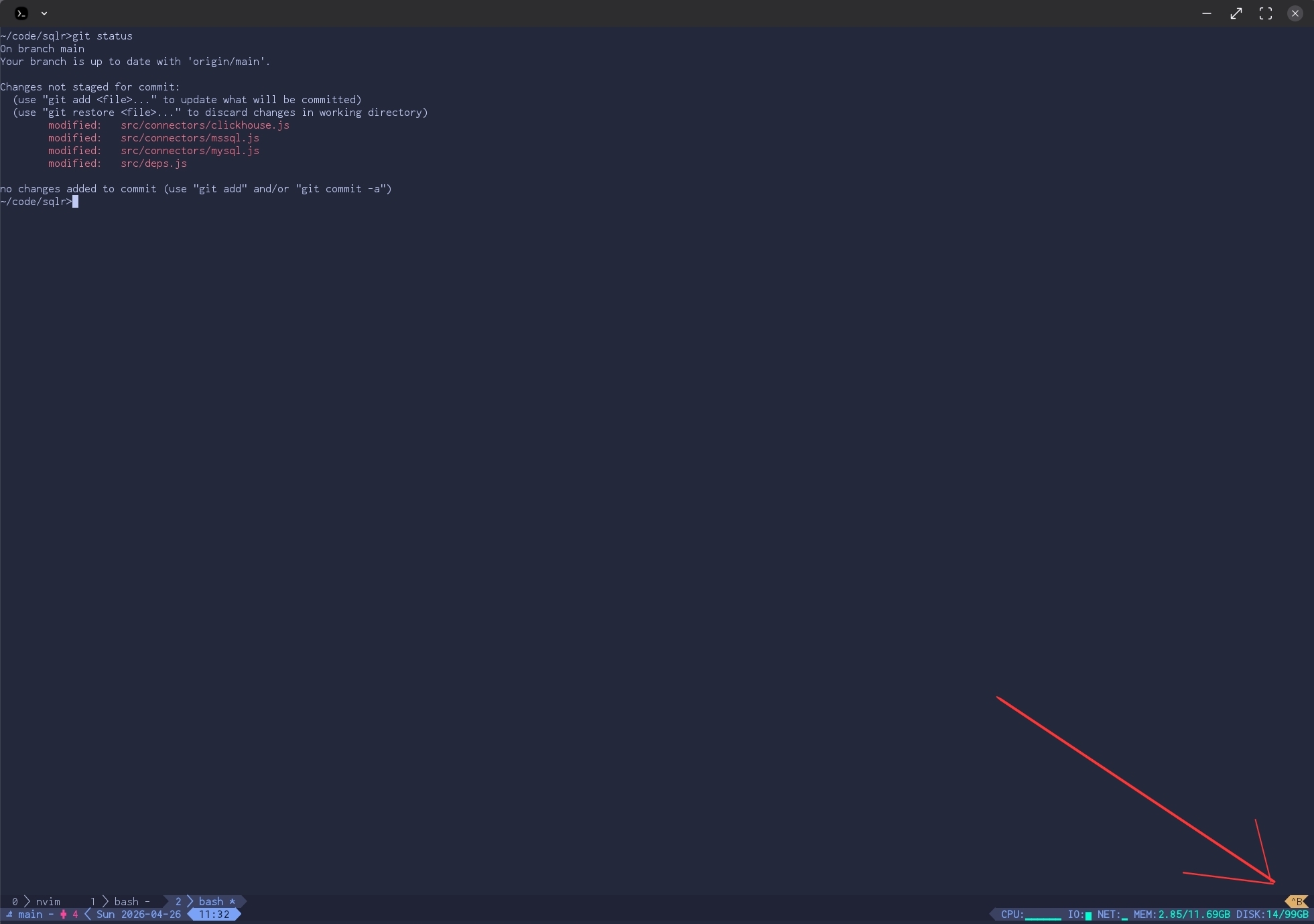
This small symbol in the lower right corner indicates that the
tmuxprefix key was pressed andtmuxis waiting for an additional keystroke.
Gitmux
There is one more plugin which is (IMHO) a must-have -
gitmux. It displays git status in the tmux status line,
which gives a quick overview of the current branch and the amount of changes. I
can't imagine working without it!
Configuration
As I've mentioned, I use a highly customized tmux with custom key bindings.
Pre-AI, it allowed me to take a quick look at my tmux.conf file to see what
key shortcuts are available. I've also removed key shortcuts I don't use. If you
want to take a look at my config in env-setup repository -
tmux.conf. It
contains quite a bit of setup. It should be fairly easy to elaborate on each
setting using AI, so I don't see the point in explaining everything here. You
can use it as inspiration for a custom setup that works well for you.
Comments