

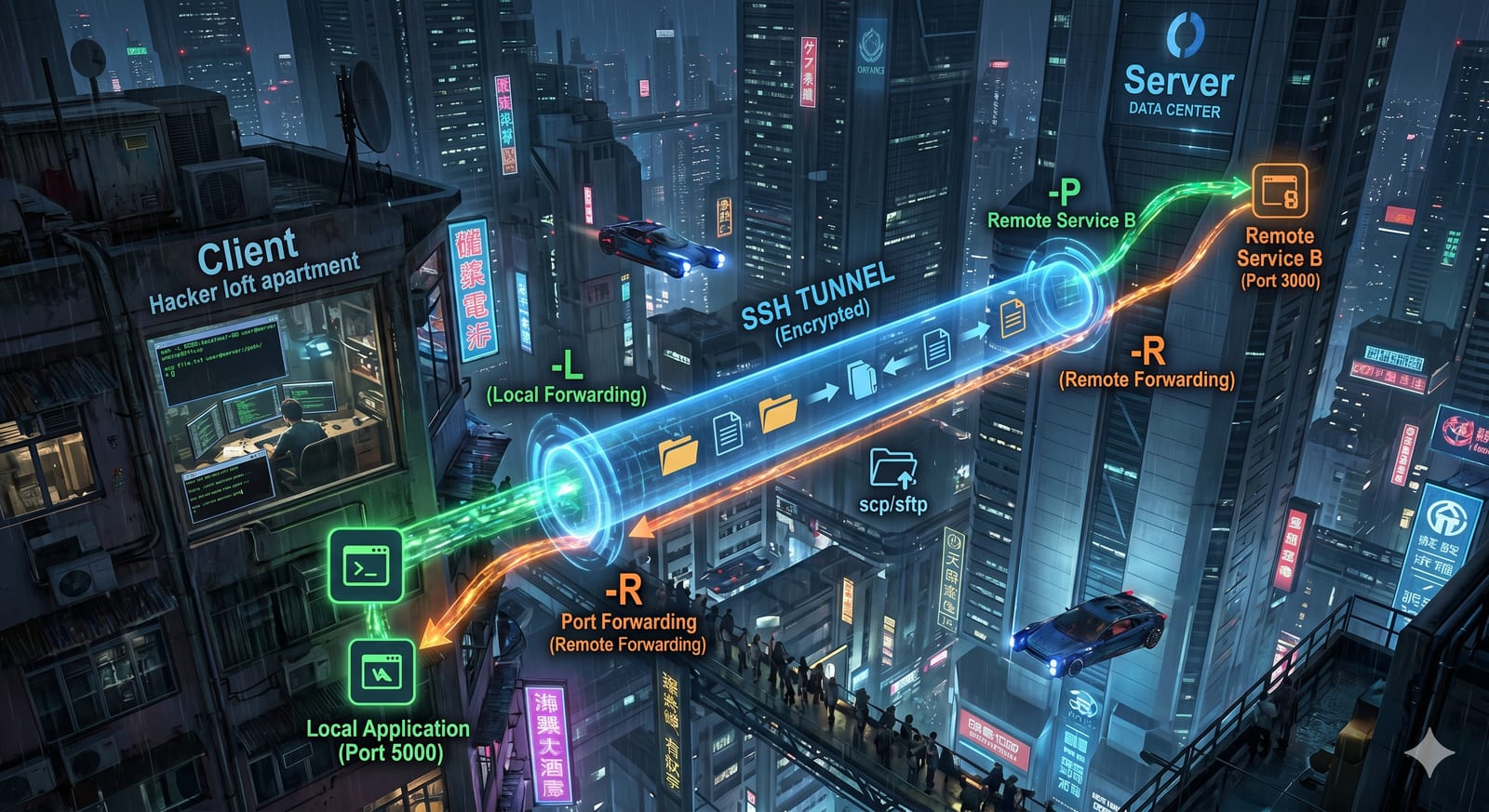
With your VPS connected and secured, you can start using it as your main development environment. Believe it or not - with a bit of SSH plumbing it's possible to run a full project (say, a Vite frontend with a Node.js backend orchestrated by Nomad or Kubernetes) entirely on a remote server and work on it as if everything ran locally. Two things make this possible: port forwarding and a simple way to transfer files. Let's go through both.
Port forwarding
Accessing remote services
Whenever you run your backend on, let's say, http://localhost:8000 on the remote
machine and try to reach it from your laptop, it won't be available (and it
shouldn't!). To access it you need to set up port forwarding the moment you
connect. Use the -L parameter. For example, extending the alias defined in the
previous article:
ssh -L 8000:localhost:8000 -o TCPKeepAlive=yes -o ServerAliveCountMax=20 -o ServerAliveInterval=15 -q -p {ssh_port} -i ~/.ssh/id_ed25519 {user}@{IP or DNS}As a result, you can access your service as if it were running directly on your machine!
Note: There is no need to update firewall rules. A single port (the SSH port) is used and acts as a connection tunnel.
The main drawback is that you need to know the ports in advance. On larger
projects this gets tricky. I just update my alias each time I hit a new port,
then open a second ssh connection with the extra -L flag - the new tunnel is
added without disturbing the first session.
Adding ports to a live connection
Sometimes a port pops up only briefly and you don't want to reconnect - for
instance during MCP authentication in tools like Claude Code. SSH has ways to
extend a live connection without dropping it. Since I rarely hit this case I
just open a second session with an extra -L flag, but if you run into it often
it's worth digging into the options.
Exposing local services to remote
There may be a situation where you have to expose some service on your machine
to the remote machine. For example, you may want to expose your Chrome with
remote debug so that Claude Code can connect to it via Chrome MCP. In this case
you need to define the -R parameter:
ssh -R 9222:localhost:9222 -o TCPKeepAlive=yes -o ServerAliveCountMax=20 -o ServerAliveInterval=15 -q -p {ssh_port} -i ~/.ssh/id_ed25519 {user}@{IP or DNS}With such a connection, whenever you run Claude Code on the remote machine it can reach your local Chrome as if it were running on the server.
Transferring files
Port forwarding solves running services remotely, but you still need a way to
move files between your laptop and the server. Downloading an asset locally and
then getting it into the repo on the remote machine is the classic case. There
are plenty of options here (scp, rsync, mounted drives...) but I wanted
something very simple: navigate to a directory on the remote, run a single
command, and have a file server scoped to that directory. I couldn't find
anything quite like it, so I vibe coded my own:
remote-file-manager.
Uploading files
On the remote machine, navigate to the target directory and start rfm:
cd ~/code/my-project/assets
rfm
rfm listens on port 4000, so forward it the same way
(-L 4000:localhost:4000). Then, on your laptop, open
localhost:4000/file-explorer:
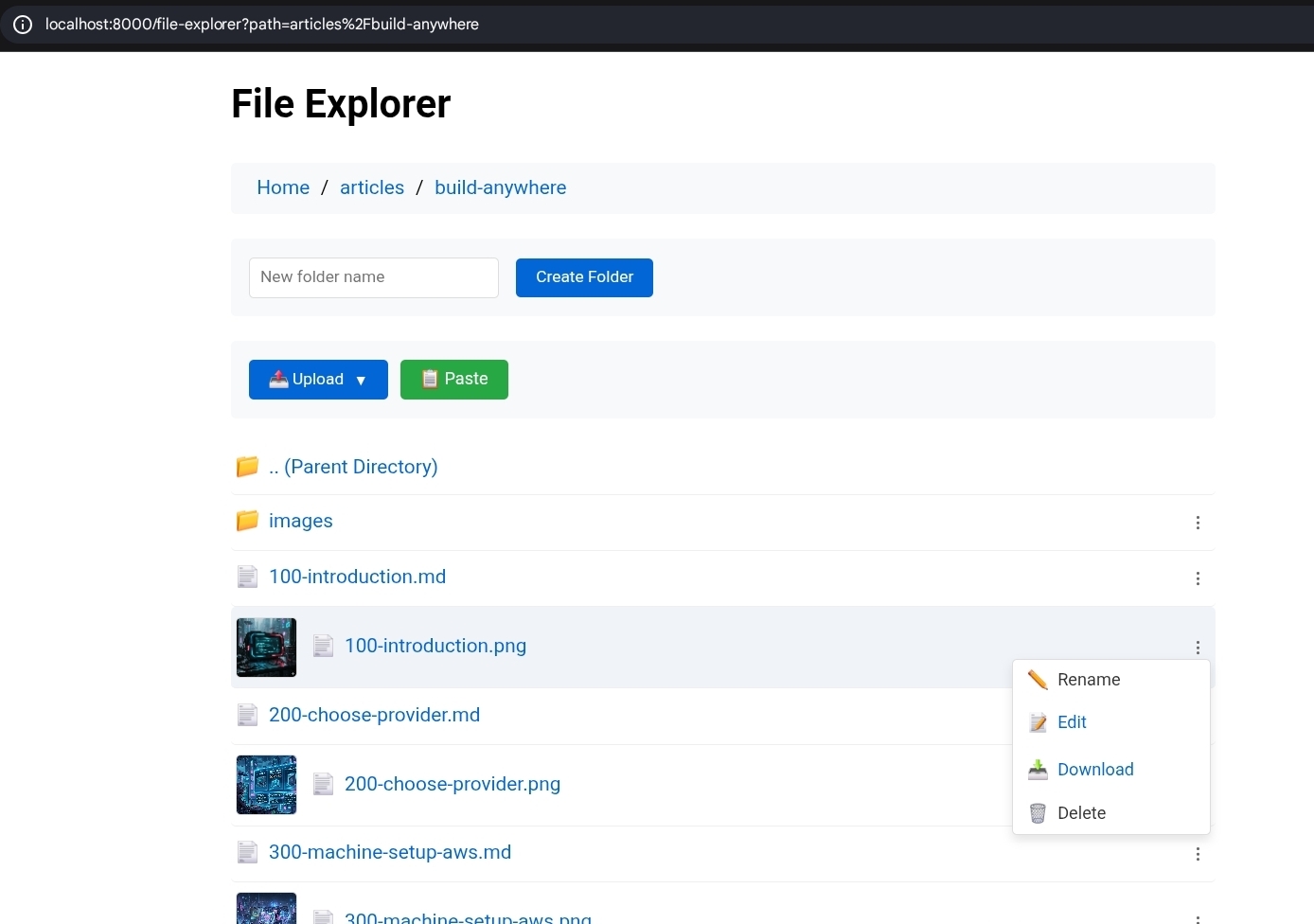
Built-in file explorer is very handy for transferring files between machines
You can also edit text files directly in the browser, which is handy when copy-pasting content between machines. There's a small quality-of-life touch on top: pasting a screenshot from the clipboard uploads it as an image. This is especially useful when working with CLI AI tools like Claude Code or Codex, where you can paste a screenshot, then reference the uploaded file's path to feed visual context into the prompt.
Serving HTML
rfm doubles as an HTTP server. If an index.html exists in the directory
where you started it, navigating to localhost:4000 will serve it - useful when
you want to preview a static page without spinning up a separate server.
Comments