


Note: This article covers configuring a machine on Contabo. If you prefer to use a different provider, feel free to skip ahead to the next guide.
Contabo is a solid budget option. I use it myself to write these articles.
To spin up your machine, head over to the Contabo website, select a VPS with the right specifications for your needs, and click Get Started.
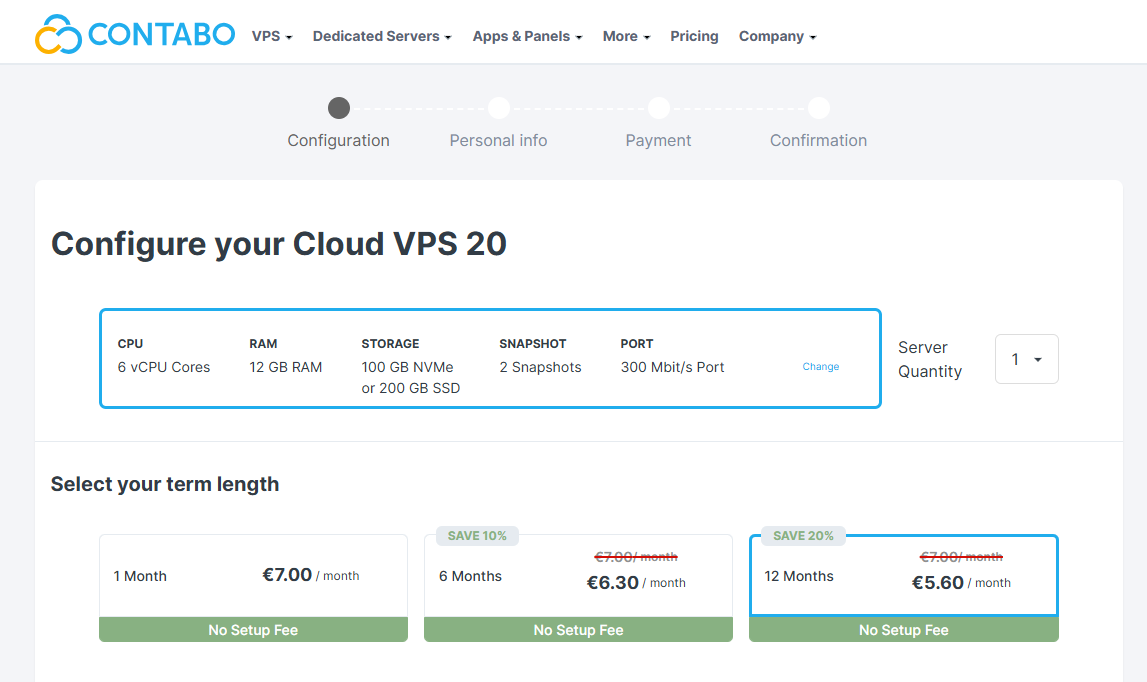
By default, Contabo suggests a yearly plan, which offers additional savings. Choose the payment term that best suits your budget:
Next, select your desired disk space and Operating System (OS):
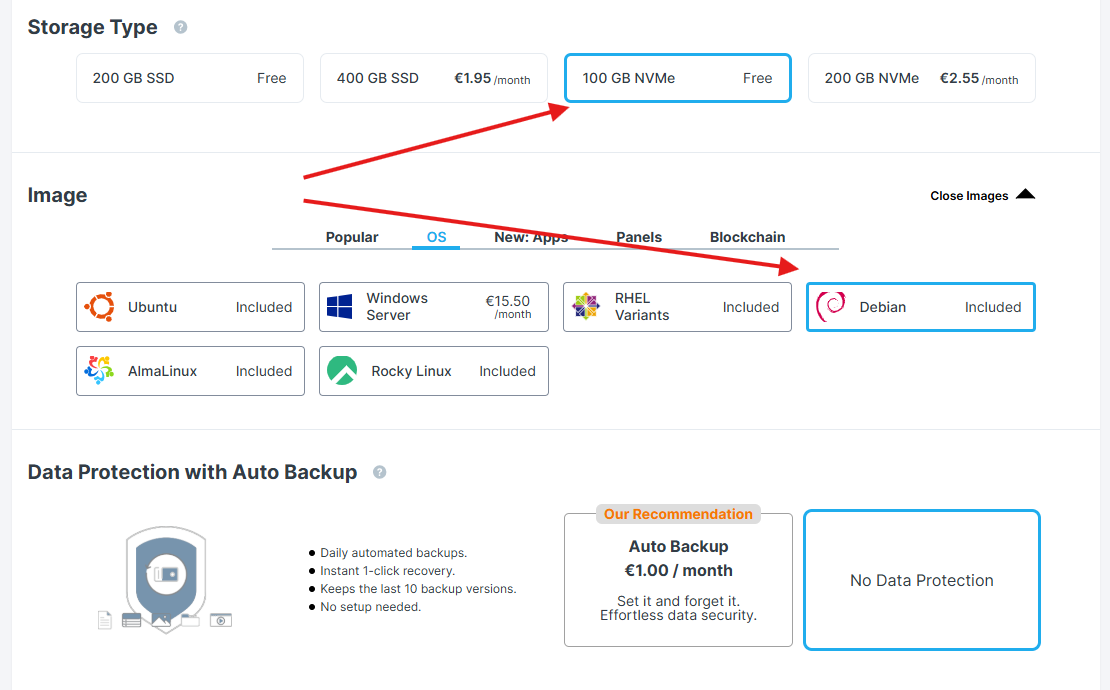
For my personal projects, 100 GB of fast storage is plenty. Depending on your use case, you might need more. I usually stick with Debian as my default OS for software development. If you prefer another system, just keep in mind that you may need to adjust some of the code snippets provided later on.
I usually skip the Auto Backup feature. This machine serves purely as a development environment, and my source code is safely secured on external Git servers anyway. It’s not a big deal to recreate the machine from scratch, especially once you have a few setup scripts in place.
Scrolling down, you'll see Additional Features. I personally skip private networking for this setup; it would require an additional VPN configuration, which feels like overkill for a basic dev server. Instead, I rely on the stop functionality to simply turn off the VPS when it's not in use, adding a simple but effective layer of security. I will cover this more in Connecting and Securing Your VPS, which should help you decide whether or not you actually need private networking.
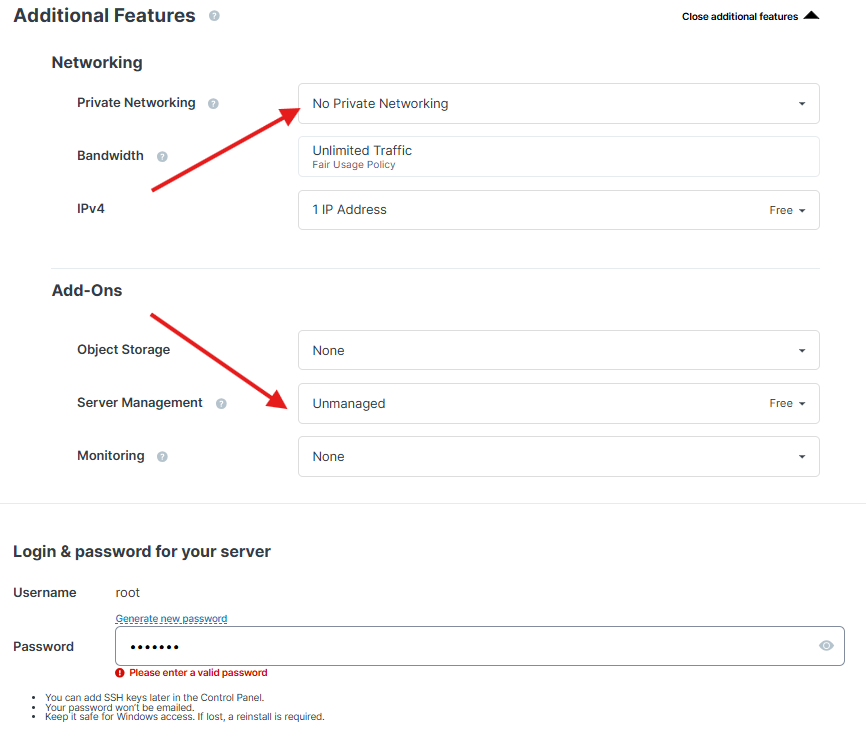
Set a strong, valid password for your root user.
Then, proceed to the order details and complete your payment. Once the setup is complete, you will gain access to the Contabo Customer Panel:
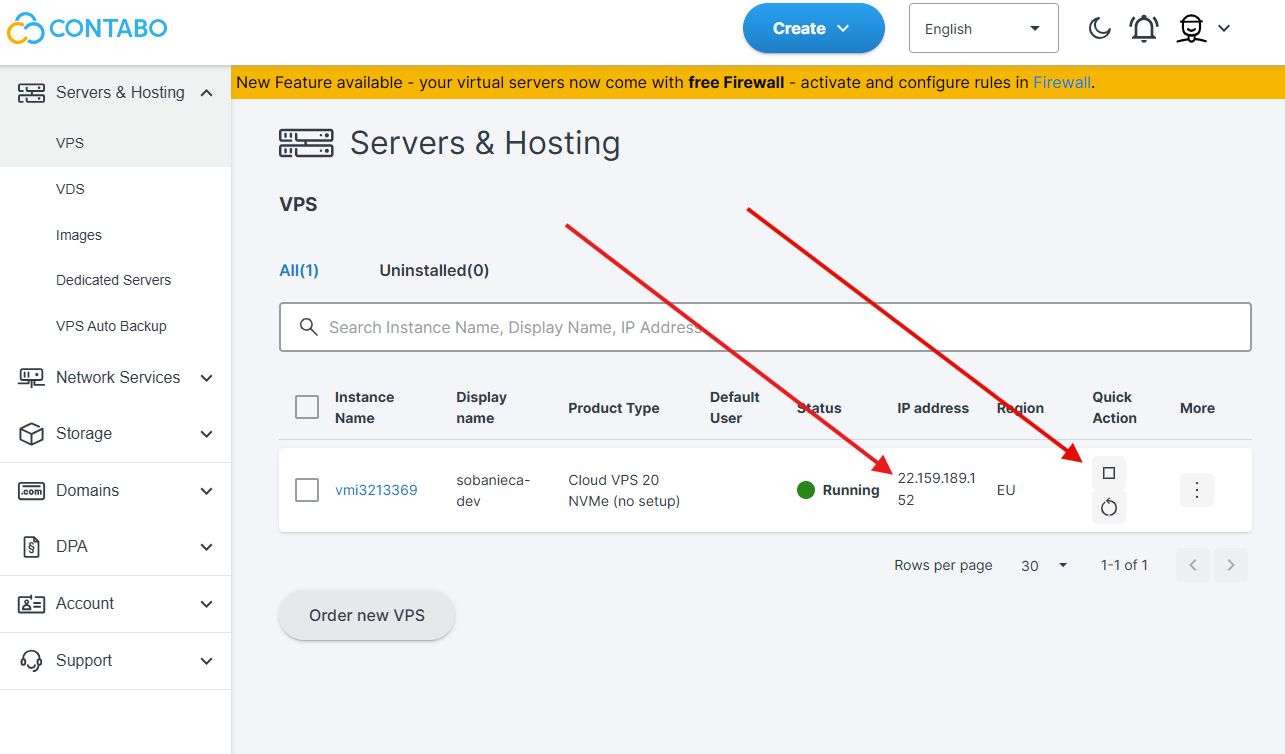
Take note of two important things here:
- Stop your machine when idle: I highly recommend stopping the machine whenever you aren't using it.
- Save your IP address: You will need this to establish an SSH connection later.
Warning: Keep in mind that with the setup presented here, your VPS is publicly accessible from any location. If you don't secure it properly and run an application that exposes a port like
3000(e.g., a React app), anyone on the internet can access it by navigating to{VPS_IP}:3000. We will cover proper firewall setup to mitigate this risk in the next article.
Comments